How to use
User manual
A walkthrough for adding your first song and practicing with lyrics, chords, and harmonica guidance.
1. What Chord Guide does
Chord Guide works in two steps: analysis and playback.
- Analysis — Reads an MP3/MP4 and builds a song package with lyrics, chords, and play data.
- Playback — Opens that package and lets you listen and play along on the timeline.
- Harmonica — Detects each song’s key and can prepare C-harmonica play. Hole numbers are relative, so they may not match exactly.
- Guitar — Extracts guitar chords for every song. Keep a capo ready.
Register songs in the analysis screen; play and practice in Chord Guide.
2. Setup & launch
Launch the Chord Guide playback app on a Windows PC.
- Open Chord Guide (playback app).
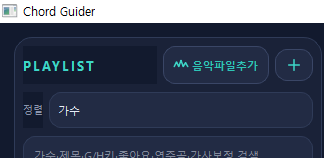
- Click Add music file at the top right of the playlist.
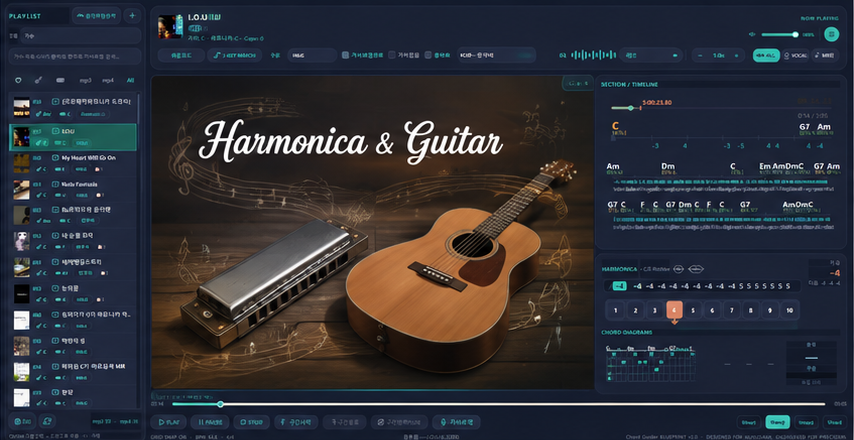
- When the playlist on the left and the practice view in the center appear, you are ready.
3. Add your first song
Analyze an MP3 (or MP4) and put it on your practice list.
- Click Add music file above the playlist. (The analysis app opens.)
- In the analysis app, choose a file and start analysis.
- Wait until it finishes. The song then appears in the playback app list.
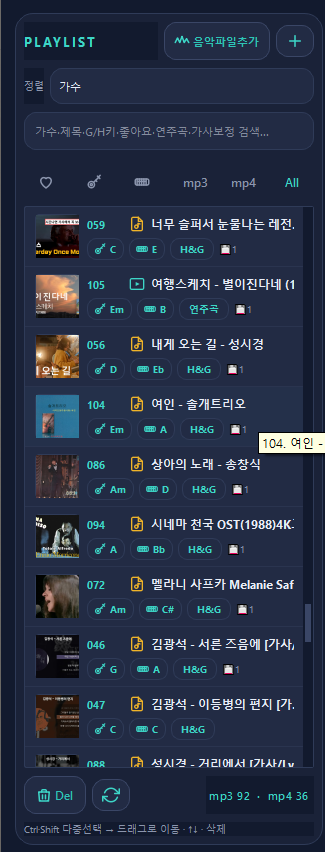
- If the new song is missing, click Refresh to the right of Del at the bottom of the playlist.
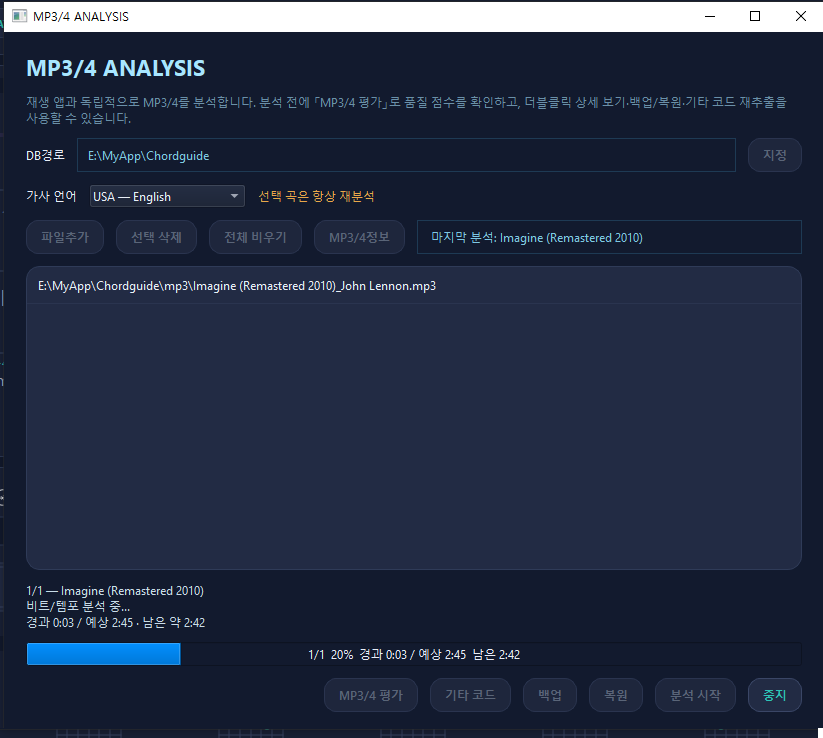
Analysis can take several minutes depending on song length and PC speed. Follow the Busy window prompts.
4. Pick a song & play
- Double-click a song in the left list to load it.
- Drag and drop a song from the left list to load it.
- Use Play at the bottom to listen; Pause and Stop to stop.
- Toggle the Space bar to switch between play and pause.
- Use the Like / Guitar / Harmonica / mp3 / mp4 tabs in the search area to filter and sort the list.
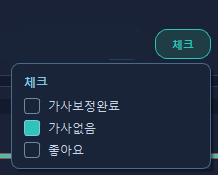
체크
곡을 불러온 뒤 상단 체크를 누르면 이 곡의 작업 상태를 표시할 수 있습니다. 선택한 값은 곡에 저장되며 플레이리스트 검색·필터에 쓰입니다.
- 가사보정완료 — 가사 보정을 마쳤으면 체크합니다.
- 가사없음 — 가사가 없는 곡이면 선택합니다.
- 좋아요 — 자주 연습할 곡에 표시합니다. (플레이리스트 하트 필터와 연동)
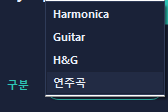
구분 (연주 유형)
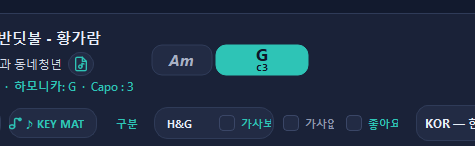
구분에서 이 곡이 어떤 형태로 연주·관리되는지 고릅니다. 선택한 유형은 곡에 저장되고 플레이리스트 정렬·필터에 반영됩니다.
- Harmonica — 하모니카 연주용
- Guitar — 기타 연주용
- H&G — 하모니카와 기타를 함께
- 연주곡 — 보컬 없는 연주곡으로 표시·필터
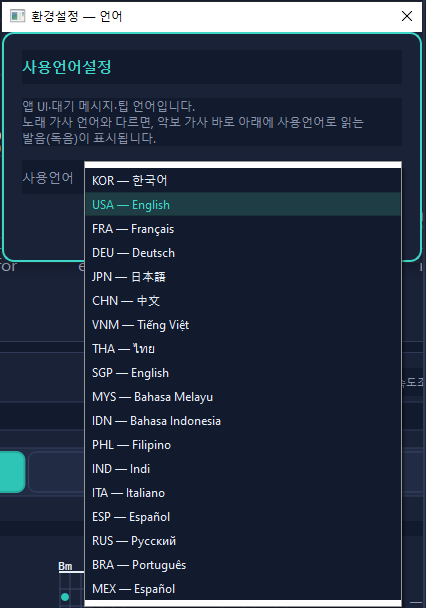
노래 언어 (국가 표기)
상단 노래 언어에서 이 곡이 불려지는 언어의 국가를 고릅니다. 예: 영어 팝송은 USA, 프랑스 샹송은 FRA처럼 국가 코드로 표기합니다. 곡에 저장되며, 이후 가사 재추출·분석(Whisper)에 쓰입니다. 환경설정의 사용언어(앱 UI 언어)와는 별개입니다.
5. Practice with lyrics, chords & harmonica
Lyrics and chords follow the playback position. Songs with harmonica also show hole and blow/draw guidance.
Harmonica hole and blow/draw positions are relative, so they are not exact.
- Click the top timeline to jump to that position and play from there.
- Follow the guitar chord for the current section.
- Preview the next notes on the harmonica board.
In Play-fit, change to the guitar chords or harmonica key you prefer.
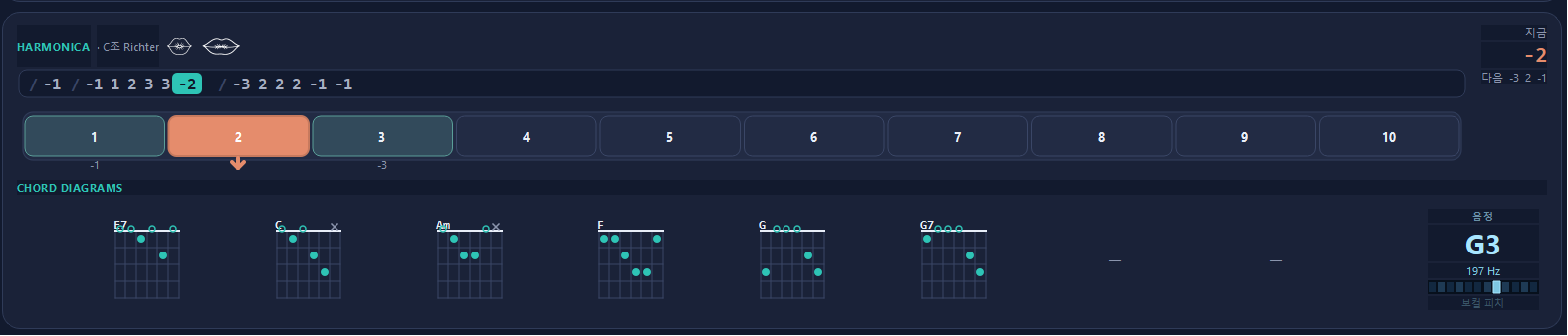
Create several preferred guitar chords in Play-fit, then click a prepared chord here whenever you want to play it.
악보 페이지 넘김
가사창 아래 악보 옆의 < / >로 페이지를 넘겨 악보를 미리 볼 수 있습니다. 가운데에 현재/총 페이지(예: 2 / 3)가 표시됩니다. 연주 중에는 페이지 넘김을 쓸 수 없습니다.

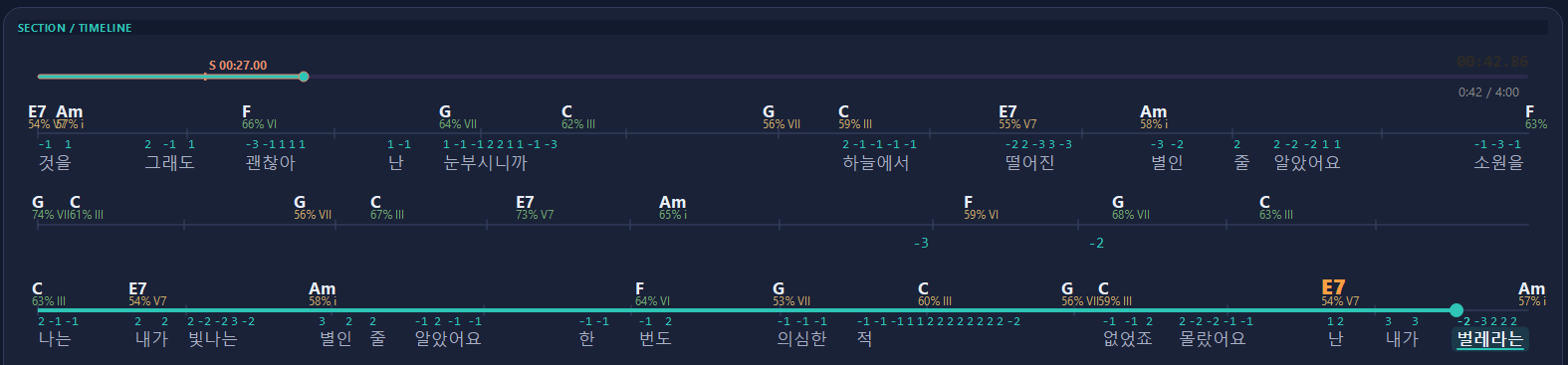
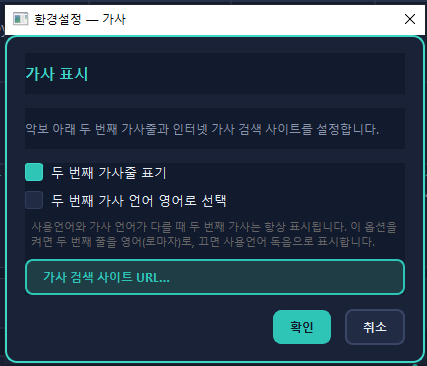
두 번째 가사줄
환경설정 → 가사에서 두 번째 가사줄 표기를 켜면, 악보 원문 가사 아래에 읽는 가사(독음)가 한 줄 더 표시됩니다. 두 번째 가사 언어 영어로 선택을 켜면 영어(로마자)로, 끄면 사용언어 독음으로 표시합니다. 사용언어와 노래 가사 언어가 다를 때는 두 번째 가사가 항상 표시됩니다.
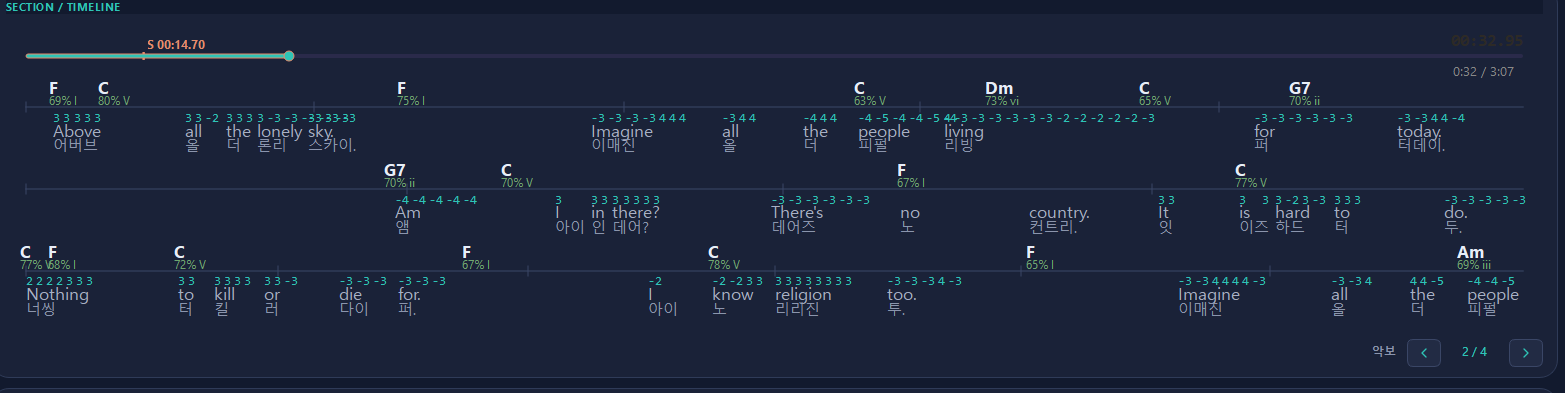
이중 가사 악보
두 번째 가사줄이 켜져 있으면 SECTION 악보에 원문 가사와 읽는 가사가 동시에 나란히 보입니다. 코드·멜로디 안내와 함께 따라 부르거나 연주하기 쉽습니다.
6. Vocal/MR · Loop · Play-fit
Tools you will use often while practicing — Vocal/MR, Loop, and Play-fit, plus EQ, instrument stems, and lyric speed adjust.
- Vocal / MR — Hear vocal only or accompaniment only to sing or play along. (Songs separated during analysis)
- Loop — Set start and end points and repeat a section.
- Click Section start and Section end in order, then click Section Play to repeat/play that range.
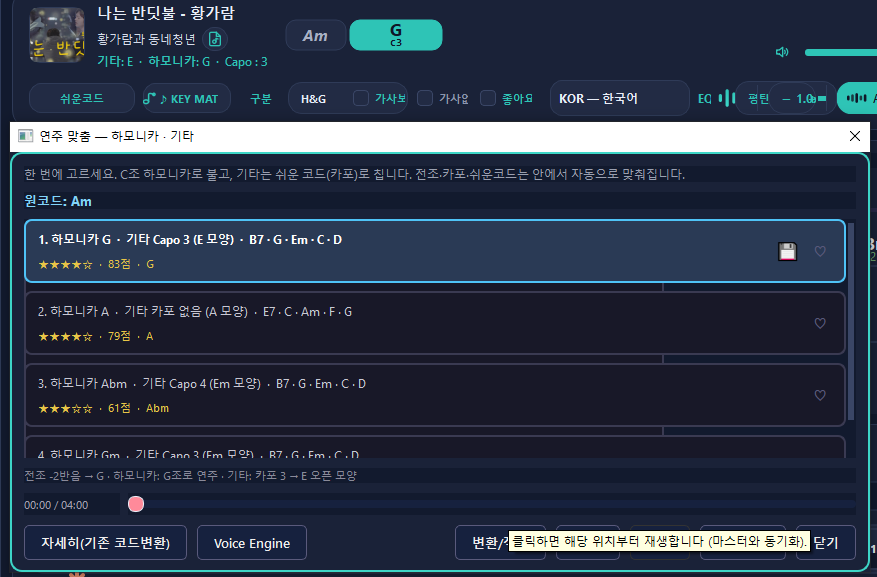
- Play-fit — On the top key strip, pick an easier key and capo.
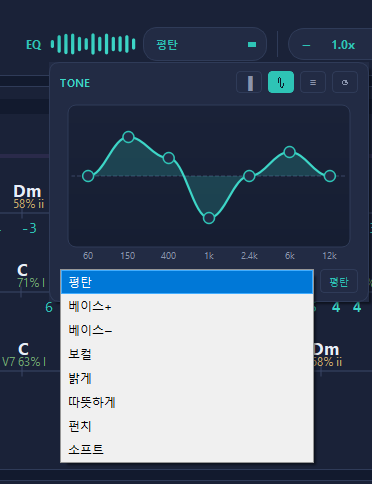
EQ (음색)
상단 EQ로 재생 음색을 조절합니다. 밴드를 드래그하거나, 더블클릭/▾으로 상세 EQ(그래픽·커브·컴팩트·다이얼)를 엽니다. 프리셋(평탄, 베이스+, 보컬, 밝게 등)을 고르거나 −12 ~ +12 dB 범위에서 직접 맞출 수 있습니다.
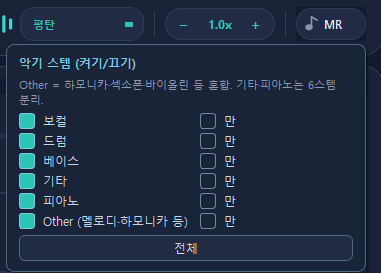
악기 버튼 (MR · 스템)
MR(악기) 버튼을 누르면 악기 스템 (켜기/끄기) 창이 열립니다. 보컬·드럼·베이스·기타·피아노·Other를 각각 켜거나 끄고, 만으로 그 악기만 들을 수 있습니다. 전체는 모든 스템을 다시 켭니다. Other는 하모니카·색소폰·바이올린 등 혼합이며, 기타·피아노는 6스템 분리 패키지에서 사용할 수 있습니다. 스템이 없는 곡은 재분석 후 이용합니다.
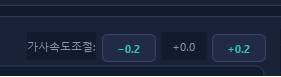
가사속도조절
노래 연주와 가사·코드 진행이 어긋날 때 가사속도조절로 맞춥니다. −0.2 / +0.2로 진행바·코드·가사를 0.2초씩 느리게 또는 빠르게 보정합니다. 오디오 재생 속도는 그대로이고, 화면 진행만 조정됩니다.
7. Video (MP4) songs
Songs with video also show a video panel. Use View1, View2, View3, and View4 at the bottom to change how much space video vs. lyrics/practice gets.
If video is missing, check whether you are on View1 (MP3-focused) and whether the package includes video.
8. When you get stuck
- No songs in the list — confirm analysis finished, then try Refresh (circular arrow).
- Empty lyrics or chords — re-analyze that song.
- No sound — check Windows output device, mute, and Vocal/MR mode.
For shorter questions see FAQ; for purchase or license questions use Contact.
9. Lyric correction
Use this when automatic lyrics are wrong, or when lyric highlights run ahead of or behind the song. Fix the wording and align the timing of each lyric line.
Open lyric correction from the playback app after loading a song. As the top tip says, double-click a lyric to edit that line right away.
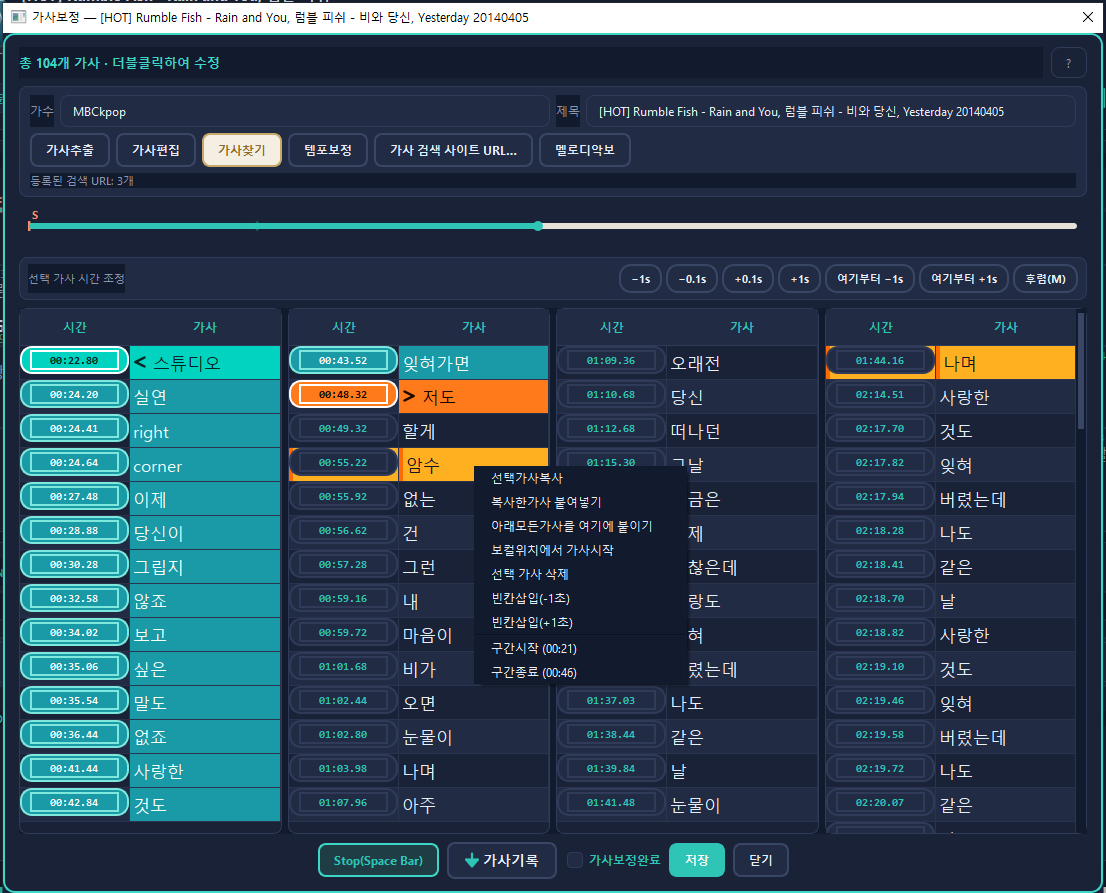
1) Top tool buttons
If lyrics are missing or badly wrong, prepare them with these tools first.
- Extract lyrics — Re-extract lyrics from an MP3/MP4 that has vocals and fill the list.
- Edit lyrics — Fix misread sentences and words in bulk.
- Tempo correction — Shift the whole lyric timeline when everything is evenly early or late.
- Lyric search site URL — Register search sites to fetch lyrics from the web. (The button shows how many URLs are saved.)
2) Align lyric timing while playing
Use this when the text is fine but highlights are off. You can stamp each line’s time during one playback pass.
- Turn on Record lyrics at the bottom first. (Recording mode)
- Put the cursor on the first lyric you want to align. (Example: “나는”)
- Start playback with Play (Space Bar).
- When the vocal sings the next lyric (example: “내가”), press ↓ (Down arrow) to move focus to that line. The playback time at that moment is saved as that lyric’s time.
- Keep pressing ↓ for each following lyric the same way.
- To pause mid-song or restart from a point, toggle Space Bar for play/pause.
- Following the song once can align the full lyric timeline.
- When finished, click Record lyrics again to stop recording.
- Check Lyric correction complete, then Save, and leave with Close.
For fine tuning, select a lyric and nudge it with Adjust selected lyric time (−1s / −0.1s / +0.1s / +1s, from here ±1s).
3) Lyric search site URL
- In “Lyric search site URL…”, register the web search addresses you want to pull lyrics from.
- Later lyric find / internet lyric apply uses those registered sites.
4) Insert, delete, paste, and other edit tools
The program must not use copyrighted lyrics or sheet music, so it includes tools to fix incorrect lyrics and timing.
Click a lyric line, then right-click to use the menu below.
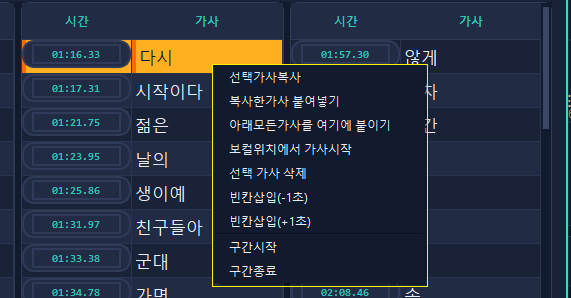
- Copy selected lyrics / Paste — Copy lyrics and paste them elsewhere.
- Paste all lyrics below here — Use when the time gap between the current lyric and the following lyrics is large.
- Start lyrics at vocal position — Start lyrics at the point where the song begins. During playback, press S at the moment the vocal starts to set the vocal position.
- Delete selected lyrics — Select lines that are not lyrics (multi-select supported) and delete them.
- Insert blank — Use when you need room for additional lyrics.
- Section start / Section end — Set the start and end of a loop range for repeated practice.
Always Save when you finish. Closing without saving may discard timing and wording changes.